Course Recap
Comprehensive review of essential web development concepts for your final exam preparation.
Course Recap - Essential Web Development Review
This comprehensive recap consolidates the most critical concepts for your final exam. Review essential knowledge from Phases 1-3 (Fundamentals, HTML, CSS) and Phases 5-6 (Project Development, Deployment).
Exam Focus: All concepts are directly relevant to both the written exam and your project presentation.
Part 1: Web Fundamentals & HTML
Web Fundamentals
Client-Server Architecture
The web operates on a client-server model:
┌─────────┐                          ┌─────────┐
│         │   1. HTTP Request        │         │
│ Client  │ ───────────────────────> │ Server  │
│(Browser)│                          │         │
│         │   2. HTTP Response       │         │
│         │ <─────────────────────── │         │
└─────────┘                          └─────────┘
The Journey of a Web Page:
- User types URL in browser
- DNS translates domain name → IP address
- Browser sends HTTP request to server
- Server sends back HTML, CSS, JavaScript files
- Browser renders webpage
📚 Learn more: Lesson 1.1: Introduction to the World Wide Web
Browser Rendering Pipeline
When a user visits your project, the browser follows this process:
1. Parse HTML → Build DOM Tree
2. Parse CSS → Build CSSOM Tree
3. Combine → Render Tree
4. Layout → Calculate positions
5. Paint → Display pixels on screen
What this means:
- Clean HTML structure = faster DOM building
- Efficient CSS = faster CSSOM building
- Optimized images = faster painting
📚 Learn more: Lesson 1.1: Introduction to the World Wide Web
URL Structure
Understanding URLs is essential for navigation:
https://www.example.com:443/path/to/page?name=value#section
│      │   │           │   │            │          │
│      │   │           │   │            │          └─ Fragment
│      │   │           │   │            └─ Query string
│      │   │           │   └─ Path
│      │   │           └─ Port (optional)
│      │   └─ Domain name
│      └─ Subdomain
└─ Protocol
For your project:
- Use
https://when deployed - Keep paths simple:
/about.html,/contact.html - Use fragments for smooth scrolling:
<a href="#section">
📚 Learn more: Lesson 1.2: URLs and Domain Names
HTTP Methods & Status Codes
HTTP Methods:
| Method | Purpose | Usage |
|---|---|---|
| GET | Retrieve data | Loading pages, images, CSS |
| POST | Create/submit data | Contact form submissions |
HTTP Status Codes:
Success:
- 200 OK: Page loaded successfully ✅
Client Errors:
- 404 Not Found: Page doesn't exist
- 403 Forbidden: Access denied
Server Errors:
- 500 Internal Server Error: Server crashed
- 503 Service Unavailable: Server temporarily down
For debugging: Check the Network tab in DevTools to see status codes.
📚 Learn more: Lesson 1.3: HTTP and Web Communication
Browser DevTools
Your most important debugging tool:
Essential Panels:
- Elements/Inspector: Inspect and modify HTML/CSS in real-time
- Console: See JavaScript errors
- Network: Monitor HTTP requests, check file sizes
- Application: View cookies, localStorage
DevTools Shortcuts:
- F12 or Ctrl+Shift+I (Cmd+Option+I on Mac): Open DevTools
- Ctrl+Shift+C (Cmd+Option+C): Inspect element
- Ctrl+Shift+M (Cmd+Option+M): Toggle responsive design mode
For your project:
- Use Elements panel to test CSS changes
- Check Network panel: images should be < 200KB
- Test responsive design at different screen sizes
- Fix console errors before submission
📚 Learn more: Lesson 1.5: Development Environment Setup
Web Standards & Validation
W3C Standards: Ensure your project works across all browsers
Validation Tools:
- HTML Validation: validator.w3.org
- CSS Validation: jigsaw.w3.org/css-validator
Browser Testing: Test on Chrome, Safari, Firefox, and Edge
📚 Learn more: Lesson 1.4: Web Standards and W3C
HTML Essentials
HTML Document Structure
Every page must have this structure:
<!DOCTYPE html>
<html lang="en">
<head>
    <meta charset="UTF-8">
    <meta name="viewport" content="width=device-width, initial-scale=1.0">
    <meta name="description" content="Brief page description for SEO">
    <title>Page Title - Your Project Name</title>
    <link rel="stylesheet" href="css/styles.css">
    <link rel="icon" href="images/favicon.ico">
</head>
<body>
    <!-- Your content here -->
    <script src="js/script.js"></script>
</body>
</html>
Critical elements:
- ✅
<!DOCTYPE html>- Must be first line - ✅
<meta charset="UTF-8">- Character encoding - ✅
<meta name="viewport">- Required for responsive design - ✅
<title>- Unique title for each page
📚 Learn more: Lesson 2.1: HTML Document Structure
Semantic HTML5
Required semantic structure:
<header>
<!-- Logo, site title, main navigation -->
<nav>
<ul>
<li><a href="index.html">Home</a></li>
<li><a href="about.html">About</a></li>
<li><a href="portfolio.html">Portfolio</a></li>
<li><a href="contact.html">Contact</a></li>
</ul>
</nav>
</header>
<main>
<!-- Main content of each page -->
<article>
<header>
<h1>Page Heading</h1>
</header>
<section>
<h2>Section Heading</h2>
<p>Content...</p>
</section>
</article>
</main>
<footer>
<!-- Copyright, contact info -->
<p>© 2024 Your Name. All rights reserved.</p>
</footer>
Element Usage:
| Element | Usage | Example |
|---|---|---|
<header> | Top section | Logo + navigation |
<nav> | Navigation links | Main menu |
<main> | Main content | Only ONE per page |
<article> | Self-contained content | Blog post, portfolio item |
<section> | Thematic grouping | "About", "Skills", "Projects" |
<footer> | Bottom section | Copyright, social links |
Exam Deduction: Using <div id="header"> instead of <header> shows lack of understanding. Always use semantic elements!
📚 Learn more: Lesson 2.7: Semantic HTML5
Forms
Contact form requirements:
<form action="/submit" method="post">
    <label for="name">Your Name:</label>
    <input type="text" id="name" name="name" required>

    <label for="email">Email:</label>
    <input type="email" id="email" name="email" required>

    <label for="message">Message:</label>
    <textarea id="message" name="message" rows="5" required></textarea>

    <button type="submit">Send Message</button>
</form>
Requirements:
- ✅ Use
method="post"(not GET!) - ✅ Every input must have a
<label>with matchingforattribute - ✅ Use appropriate input types:
email,tel,date,url - ✅ Add
requiredattribute for mandatory fields
📚 Learn more: Lesson 2.6: Forms & Input Elements
Images
Proper image usage:
<img src="images/portrait.jpg"
     alt="Descriptive text for screen readers"
     width="800"
     height="600"
     loading="lazy">
Requirements:
- ✅ Store all images in
images/folder - ✅ Use relative paths:
images/photo.jpg - ✅ Always include
altattribute - ✅ Optimize file size: < 200KB per image
- ✅ Use appropriate format: JPG for photos, PNG for graphics, SVG for icons
Hotlinking is PROHIBITED:
<!-- ❌ HOTLINK - WILL FAIL EXAM -->
<img src="https://example.com/images/photo.jpg" alt="Photo">

<!-- ✅ CORRECT - LOCAL IMAGE -->
<img src="images/photo.jpg" alt="Photo">
📚 Learn more: Lesson 2.4: Images & Media
Part 2: CSS Styling & Responsive Design
CSS Fundamentals
Linking CSS
Only use external stylesheets:
<!-- ✅ External stylesheet (REQUIRED) -->
<head>
    <link rel="stylesheet" href="css/styles.css">
</head>
<!-- ❌ Inline styles (AVOID) -->
<p style="color: red;">Text</p>

<!-- ❌ Internal styles (DON'T USE) -->
<style>
    p { color: red; }
</style>
📚 Learn more: Lesson 3.1: CSS Introduction & Syntax
Selectors & Specificity
/* Element selector (specificity: 0,0,1) */
p { color: black; }

/* Class selector (specificity: 0,1,0) - PREFER THIS */
.highlight { background: yellow; }

/* ID selector (specificity: 1,0,0) - AVOID for styling */
#header { color: blue; }

/* Descendant selector */
nav a { text-decoration: none; }

/* Pseudo-classes */
a:hover { color: red; }
li:first-child { font-weight: bold; }
Specificity Hierarchy (low to high):
- Element selectors (
p,div) - Class selectors (
.button,.card) - ID selectors (
#header) - Inline styles (avoid!)
!important(never use!)
Best practice: Use classes for styling. Reserve IDs for JavaScript and anchor links.
📚 Learn more: Lesson 3.2: Selectors & Specificity
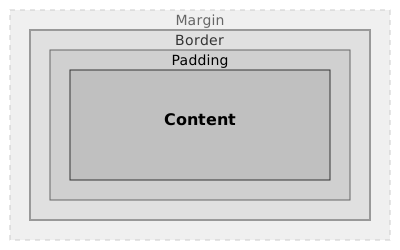
Box Model
Every element is a box with four areas:
CSS:
.box {
    width: 300px;
    height: 200px;
    padding: 20px;
    border: 2px solid #333;
    border-radius: 8px;
    margin: 20px;
}
IMPORTANT - Box Sizing:
/* Add this to prevent layout surprises */
* {
    box-sizing: border-box;
}
📚 Learn more: Lesson 3.3: Box Model & Layout Fundamentals
CSS Layout
Flexbox - One-Dimensional Layout
Perfect for:
- Navigation menus
- Card layouts in a row
- Centering content
Basic pattern:
.container {
    display: flex;
    gap: 20px;
    justify-content: space-between;
    align-items: center;
}
Common patterns:
/* Navigation menu */
nav ul {
    display: flex;
    gap: 20px;
    list-style: none;
}

/* Center content */
.hero {
    display: flex;
    justify-content: center;
    align-items: center;
    min-height: 400px;
}

/* Card layout */
.cards {
    display: flex;
    gap: 20px;
    flex-wrap: wrap;
}
📚 Learn more: Lesson 3.4: Flexbox Layout
Grid Layout - Two-Dimensional Layout
Perfect for:
- Page layouts
- Image galleries
- Card grids
Basic pattern:
.container {
    display: grid;
    grid-template-columns: repeat(3, 1fr);
    gap: 20px;
}
Responsive grid (no media queries needed!):
.gallery {
    display: grid;
    grid-template-columns: repeat(auto-fit, minmax(250px, 1fr));
    gap: 20px;
}
📚 Learn more: Lesson 3.5: Grid Layout
Responsive Design
Responsive Meta Tag (REQUIRED)
This ONE line makes your site responsive:
<meta name="viewport" content="width=device-width, initial-scale=1.0">
Must be in the <head> of all pages!
Media Queries
Mobile-first approach:
/* Base styles for mobile (< 600px) */
.container {
    padding: 10px;
    font-size: 14px;
}

nav ul {
    flex-direction: column;
}

/* Tablet (≥ 600px) */
@media (min-width: 600px) {
    .container {
        padding: 20px;
        font-size: 16px;
    }
}

/* Desktop (≥ 1200px) */
@media (min-width: 1200px) {
    .container {
        max-width: 1200px;
        margin: 0 auto;
        padding: 40px;
    }

    nav ul {
        flex-direction: row;
    }
}
Test at these breakpoints:
- 📱 Mobile: 320px, 375px, 414px
- 📱 Tablet: 768px, 1024px
- 💻 Desktop: 1200px, 1920px
Responsive Images
img {
    max-width: 100%;
    height: auto;
}
This ensures images never overflow their container!
📚 Learn more: Lesson 3.6: Responsive Design & Media Queries
Sticky Header
header {
    position: sticky;
    top: 0;
    background: white;
    z-index: 100;
}
Header "sticks" to top when scrolling - improves navigation accessibility.
Part 3: Project Development
File Structure
Required organization:
my-project/
├── index.html              # Homepage (REQUIRED)
├── about.html
├── portfolio.html
├── contact.html
├── css/
│   └── styles.css
├── js/
│   └── script.js
├── images/
│   ├── logo.png
│   ├── hero-image.jpg
│   └── ...
└── README.md
File naming:
- ✅ Lowercase:
about.html - ✅ Hyphens:
my-portfolio.html - ✅ Descriptive:
team-photo-2024.jpg - ❌ No spaces
📚 Learn more: Lesson 5.2: Personal Homepage Structure
Testing Checklist
Functionality:
- All 4+ pages load without errors
- All navigation links work
- All images display correctly
- Contact form has proper labels
- No broken links
Quality:
- HTML validates
- CSS validates
- No console errors
- Works on mobile
- Works on desktop
- Images < 200KB each
Code Quality:
- Semantic HTML used
- External CSS (no inline styles)
- Consistent indentation
- Descriptive class names
Content:
- No placeholder images
- No "Lorem ipsum" text
- Professional, complete content
📚 Learn more: Lesson 5.5: Testing & Debugging
Git Basics
Basic workflow:
# Initialize repository
git init

# Check status
git status

# Add files
git add .

# Commit changes
git commit -m "Add homepage structure and navigation"

# View history
git log --oneline
Good commit messages:
- ✅ "Add contact form with email validation"
- ✅ "Fix mobile navigation menu overflow"
- ❌ "update" (too vague)
📚 Learn more: Lesson 6.1: Git & Version Control
Important Reminders
Quality Over Complexity: A simple, complete, professional 4-page website scores better than a complex, unfinished project!
Focus on:
- ✅ All features work properly
- ✅ Professional appearance
- ✅ Clean, valid code
- ✅ Clear presentation
Additional Resources
Course Materials:
Tools:
Related Exam Resources:
Good luck with your exam! 🚀